First time login to PlayOptions services
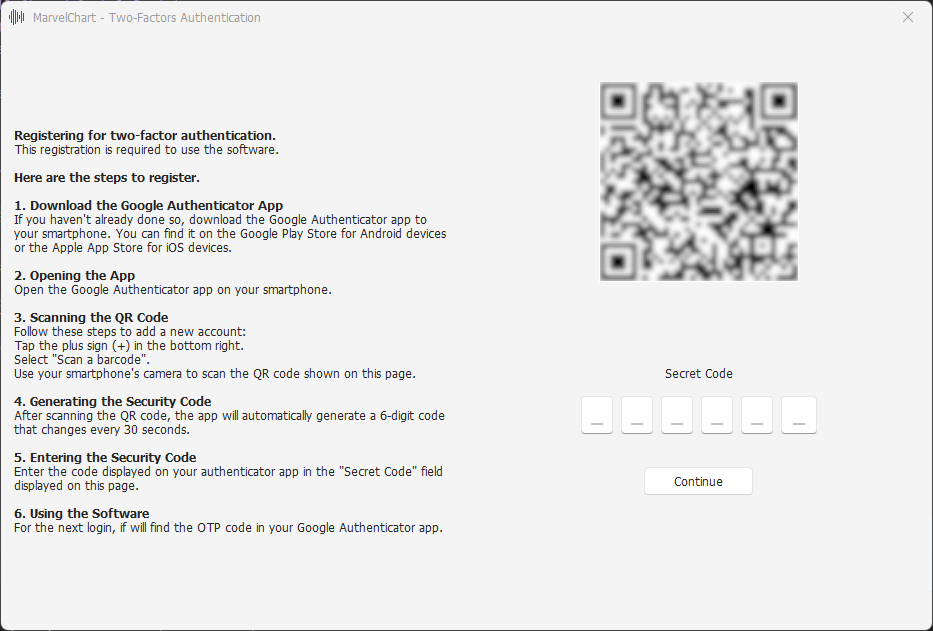
When you access the services provided by PlayOptions for the first time, you are asked to generate an OTP code on your smartphone that will be associated with your account to allow secure authentication. The services for which the use of the OTP code is necessary are:
Access to your personal area on the site PlayOptions;
Access to software that requires a subscription provided by PlayOptions.
To generate your OTP code, proceed as follows:
On your smartphone, open App Store (for Apple devices) or Google Play Store (for Android devices);
Search for and install the Google Authenticator application;
After completing the installation, open Google Authenticator;
Click on the Get Started button;
Click on "Use Authenticator without an account";
Click on the icon with the "+" symbol at the bottom right;
Choose "Scan a QR code";
Click on "Allow";
Frame the QR code displayed on your PC with your smartphone camera. The QR code can be presented via the PlayOptions software or via your web browser if you are accessing your personal area of the website PlayOptions;
Enter the OTP code displayed in Google Authenticator on your smartphone in the request window on your PC and confirm with OK.
Keep the OTP code for your PlayOptions account on your smartphone. The OTP code will be requested automatically when necessary.
If you lose the OTP code for your PlayOptions account, you can perform a recovery procedure that will require you to perform the procedure described on this page again.